Home › Devices › Apple › iPod classic (6th generation)
 CUSTOM FW!
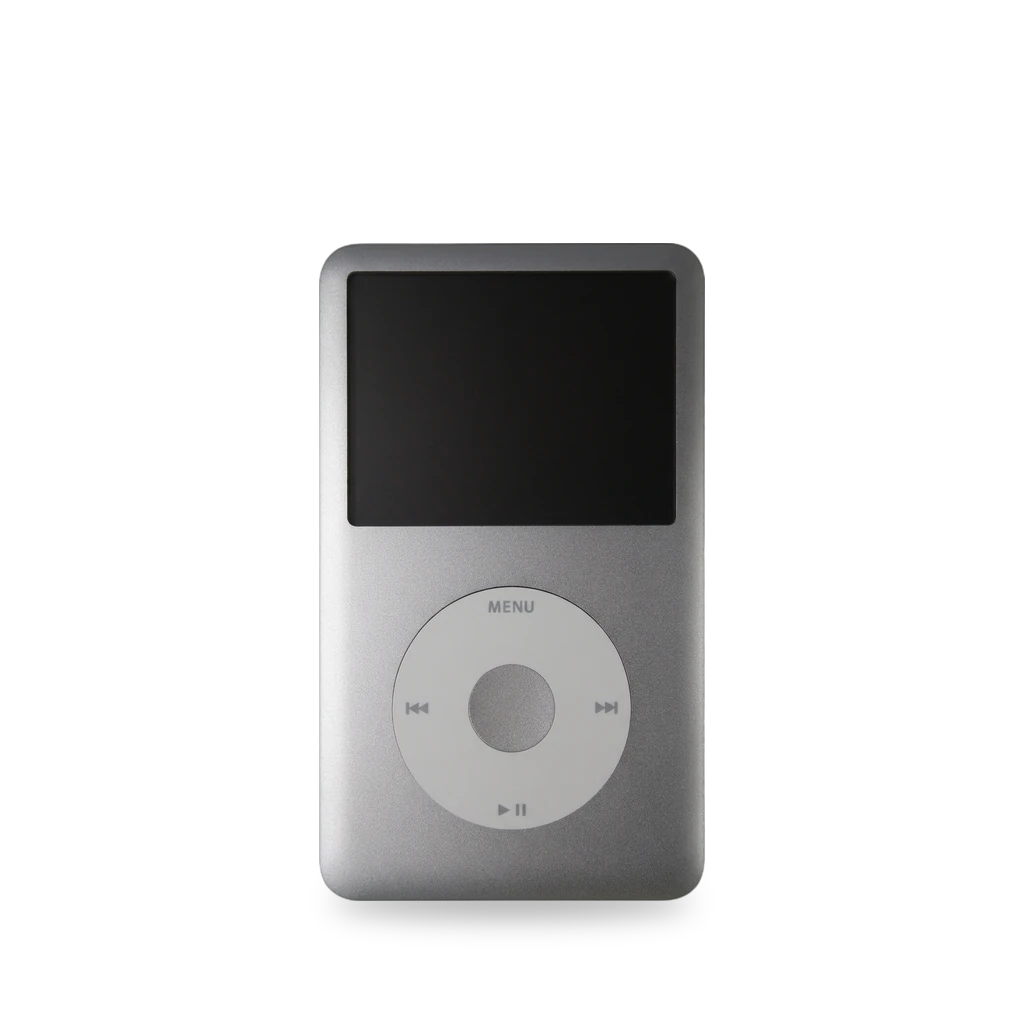
Photo: Micha Sulik, CC BY 3.0 · AI-edited (studio background)

APPLE · MUSIC PLAYER · 2007-2014
iPod classic (6th generation)
Also called: iPod classic · iPod 6G · ipod6g · A1238 · iPod classic 80GB · iPod classic 120GB · iPod classic 160GB
A hard-drive iPod with many mods today: Rockbox custom firmware (dual boot with Apple's), flash storage instead of the hard drive, bigger batteries, and Bluetooth / USB-C boards.[1][3][6][8]
Which one do I have?
| Model | Variant | Year | Firmware | How to tell |
|---|---|---|---|---|
| A1238 | 80 GB / 160 GB thick (late 2007) | 2007 | 1.1.2 | 6th gen came in thick and slim cases.[2][1] |
| A1238 | 120 GB (late 2008) | 2008 | 2.0.1 | [2] |
| A1238 | 160 GB thin (late 2009) | 2009 | 2.0.4 | Thin case, 160 GB. Settings → About shows version 2.0.4.[2][17] |
| A1238 | 160 GB (late 2012 revision) | — | 2.0.5 | [2] |
Specs
Mods (6)
⚠ Mod at your own risk. We collect what others have published; we have not tested these mods. Read the safety notes
Rockbox custom firmware (dual boot)Works
- ⚠ Can brick A mistake can leave the device unable to start.
Free, open-source firmware that installs next to Apple's. Adds FLAC and other formats, drag-and-drop music, themes and an equalizer.[1][2][3][4][17][16]
Good to know
- Stable Rockbox 4.0 (released 2025) has an official build for this iPod (target 'ipod6g').[3][5]
- Dual boot: the Rockbox bootloader goes into the iPod's flash chip next to Apple's. Hold Menu while turning on to start Apple's firmware.[2]
- Only works on FAT32 iPods (set up with iTunes for Windows). Mac-formatted (HFS+) iPods must be converted first.[1]
- Supported Apple firmware before install: 1.1.2 (2007), 2.0.1 (2008), 2.0.4 (2009), 2.0.5 (2012).[2]
- Install the Rockbox files first, then the bootloader.[2][1]
- On Windows, use Rockbox Utility (or the mks5lboot command-line tool). The bootloader is sent over USB in DFU mode and needs a DFU driver: iTunes / Apple's driver, or WinUSB / libusbK via Zadig. libusb-win32 does not work.[1][2]
- Apple's WinUSB DFU driver installed by a current Apple app worked without Zadig or iTunes (Windows 11).[17]
- Music loaded with iTunes has hidden, renamed files. Build the Rockbox database to browse it by artist and album.[1]
⚠ Watch out
- Three low (330 Hz) tones after the install means the flash chip was corrupted. Restore with iTunes. Should not happen.[2]
- Turning the Hold switch on while Rockbox starts clears your Rockbox settings.[2]
- Close iTunes completely before you start. If it opens when the iPod is plugged in, it gets in the way.[16]
- DFU mode only stays on while the iPod is connected to a computer.[17]
Guides:Rockbox manual (iPod classic) – Installationmks5lboot README (Rockbox source)Build log – Rockbox on a 160 GB thin iPod classic
Flash storage (replace the hard drive)Works
- ⚠ Lithium battery Uses or touches a lithium cell. A damaged cell can catch fire.
Swap the aging hard drive for an adapter that holds SD cards, CompactFlash or SATA storage.[1][6][13][14]
Parts
- iFlash-Quad (4× microSD) Fits — Fits with a 2000 mAh battery and the thin back.[6]
- iFlash-Solo (1× SD) Fits with conditions — Tight squeeze with a 2000 mAh battery in a thin back.[6]
Good to know
- Single-SD adapters only partly emulate the drive commands, so Rockbox can't fully manage their power. CF and SATA adapters are fully supported.[1]
- Dual/quad SD adapters join the cards like RAID 0: if one card fails, data on all cards may be lost.[1]
- Speeds don't really improve (the iPod is the bottleneck), but it feels much faster because there is no seek time.[1]
- Apple's firmware on the 6th gen (80 GB, 120 GB, and the thick 160 GB) stops at 128 GB. The thin 7th gen 160 GB, PC297 or MC297, can use more than 128 GB on the stock firmware.[13]
⚠ Watch out
- Apple's firmware on earlier 6th-gen models only supports up to 128 GiB. Bigger storage with Apple firmware causes massive data corruption. Rockbox is fine.[1]
- Flash adapters are smaller than the drive. Secure them well; ribbon cables are fragile.[1]
- The case is held by 13 metal clips. Discharge the iPod completely before you open it.[14]
Guides:Rockbox manual (iPod classic) – InstallationiFlash – 3rd party extended battery guide
Bigger batteryWorks
- ⚠ Lithium battery Uses or touches a lithium cell. A damaged cell can catch fire.
High-capacity batteries (around 2000 mAh) are listed as fitting with some flash adapters.[6][7]
Parts
- 2000 mAh thin-back battery (e.g. MCMConcepts '504045') Fits with conditions — Listed as fitting with the iFlash-Quad and a thin back.[6][7] Buy: desertcart.tw
⚠ Watch out
Bluetooth + USB-C boardWorks
Add-in boards add Bluetooth audio and USB-C charging. Some fully replace the logic board.[8][9]
Parts
- Boxy Pixel custom PCB (Bluetooth + USB-C charge) Fits with conditions — For generations 5, 6 and 7; designed for Boxy Pixel housings.[8] Buy: boxypixel.com
- Sprout replacement logic board (RP2350, Wi-Fi + Bluetooth) Fits with conditions — Keeps case and click wheel. Sources disagree on which models are supported.[9]
Guides:No guide found yet.
ESP32 on the 30-pin dock portExperimental
Control playback (play, pause, skip, volume) from a microcontroller through the dock connector's serial lines. No case opening.[10][11]
Good to know
- An ESPHome setup drives the iPod over serial at 19200 baud, using a 500 kΩ resistor between two dock pins. The author tested it on 5th and 7th generation iPods and had not retested it since building it.[10]
- An internal ESP32 Bluetooth board exists for the iPod nano 3G; its author says the classic is the easiest port next, as they share the same architecture.[11]
Guides:No guide found yet.
Headphone jack and hold switchWorks
- ⚠ Lithium battery Uses or touches a lithium cell. A damaged cell can catch fire.
The headphone jack and hold switch sit on the metal back and connect with a flex cable. The case opens by prying the seam.[15][14]
Good to know
- The jack assembly is mounted on the metal rear cover and wired with a flex cable.[15]
⚠ Watch out
Guides:iPod Classic Headphone Jack and Hold Switch Replacement - iFixit Repair Guide
Buttons & modes
| What | How |
|---|---|
| Hard reset | Hold Select + Menu until the Apple logo (about 5-8 s).[1] |
| Disk Mode | Hard reset, then as soon as it restarts hold Select + Play until 'Disk Mode' shows.[1] |
| DFU mode | While connected to a computer, hold Select + Menu about 12 s until the screen stays black. Unplug to leave.[2][17] |
| Start Apple firmware (Rockbox installed) | From off, hold Menu while turning on.[2] |
| Turn off (Rockbox) | Long-press Play.[2] |
Sources (17)
- docs Rockbox manual (iPod classic) – Installation · 2026-11-12
- official mks5lboot README (Rockbox source) · 2026-11-12
- official Rockbox 4.0 release downloads · 2026-11-12
- official Rockbox Utility · 2026-11-12
- news Hackaday – Rockbox 4.0 released · 2026-11-12
- blog iFlash – 3rd party extended battery guide · 2026-11-13
- shop MCMConcepts 2000 mAh battery – listing and reviews · 2026-11-13
- shop Boxy Pixel – iPod custom PCB (Bluetooth + USB-C) · 2026-11-12
- news Cult of Mac – Sprout replacement iPod motherboard · 2026-11-12
- forum ESPHome – Control iPod through 30-pin connector · 2026-11-12
- docs lemonjesus/iPodBluetooth · 2026-11-12
- docs iPod classic (Original/6th Gen) 80 GB, 160 GB Specs · 2026-11-15
- official iFlash-Compatibility · 2026-11-15
- wiki iPod Classic Battery Replacement - iFixit Repair Guide · 2026-11-15
- wiki iPod Classic Headphone Jack and Hold Switch Replacement - iFixit Repair Guide · 2026-11-15
- docs How to install Rockbox on an iPod Classic - iFixit Repair Guide · 2026-11-15
- firsthand Build log – Rockbox on a 160 GB thin iPod classic
build-logs/2026-11-12-ipod-classic-6g-rockbox.md· 2026-11-12